


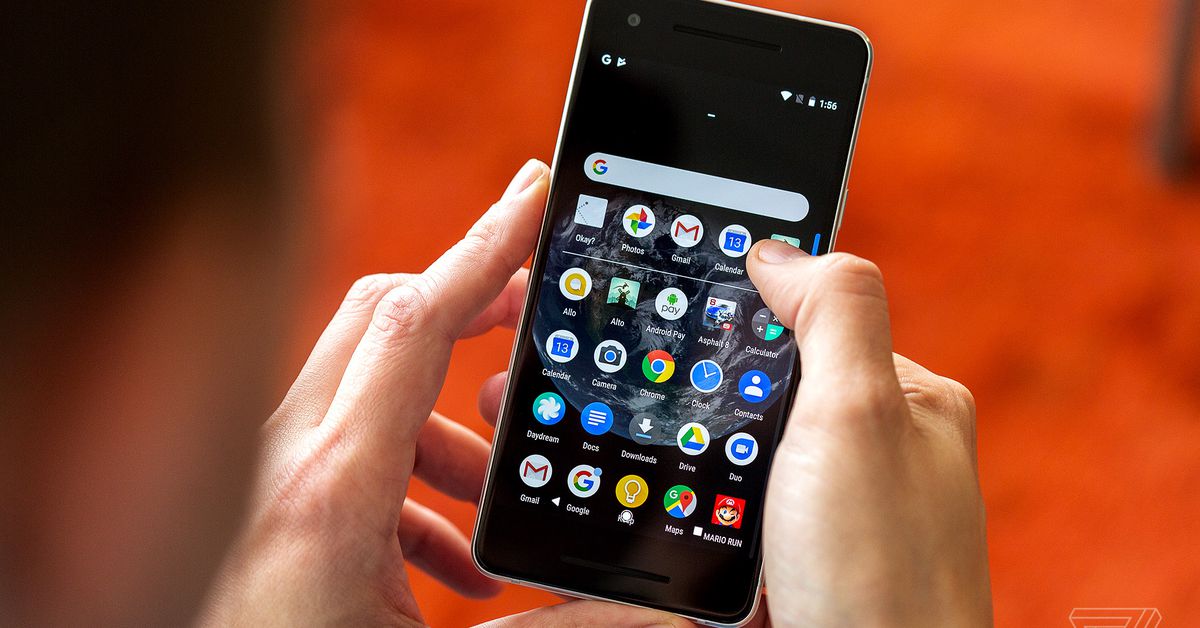
If you’ve had an Android phone for any length of time, it’s easy to get used to living with, well, chaos. If you’re anything like me, you’re constantly adding new apps, deciding they’re okay but not great, adding another, and so on. Then, a few months later, as you’re scrolling through your app drawer, you’re surprised to see several apps that you forgot about and perhaps don’t even remember what they’re used for.
In a very short time, it can become a mess. And if you’re really an app enthusiast, it can start taking up more space than you can spare. (Here, we can take as written the obligatory KonMari reference.)
There are essentially two steps to making sense of all of those Android apps: find a way to organize them (and there are a variety of ways, depending on what you’re comfortable with) and periodically remove all of the extra apps that you’ve accumulated and no longer use. Here are a few tips to help you do both. If you’re new to Android, this may help you stay organized from day one; if you’re an experienced user, you might pick up a few tips.
As you go through these suggestions, keep in mind that not all Android interfaces are the same. This how-to was created using a Pixel 6 running Android 12, but your interface may be slightly different, depending on the model of your phone and which Android version you’re running.
At the most basic (and anyone who’s had an Android phone for more than a week or two can skip down a bit), you can just use the app drawer, which is accessed either by swiping up from the bottom of the phone or by pressing on the apps icon at the bottom center of your display. Place the apps you use the most on one or more of your homescreens by long-pressing them while in the app drawer.
The app drawer is (thankfully) organized in alphabetical order, with your last-used apps on top. You can swipe up to go through the apps; you can also swipe down on the side to go through the alphabet (which could be faster). A search bar at the top lets you type in the name of your app if you wish.
However, once you start accumulating apps, you may want to save some time by creating a more structured system.
Fill the Favorites Tray
You can quickly access your most-used apps by putting them Favorites Tray, the bottom row of apps that is always there no matter which homescreen you’ve swiped to. The tray is already filled? No problem.
- Long-press on the app you no longer want to keep in the Favorites Tray. Move it to another place on the home page, or move it up until you see the Remove and Uninstall choices at the top of the screen. Choose one and move the app there.
- Long-press on an app from the homescreen or from the app drawer and move it into the tray.
Create folders on your homescreen
A good way to organize your apps is to use folders. For example, you can put all of your music and podcast apps into a folder called “Listen,” or all your social media apps into a folder called “Social.” It’s simple to create a folder.


- Put the first two apps you want to include on your homescreen.
- Long-press one and move it on top of another. This will create a new folder.
- Android may give your folder a name. If you want to give it a different name, tap on the folder, tap on the name just below the apps, and type in your new name.
- Add more apps to a folder by long-pressing on the app and moving it into the folder.
- Remove an app from a folder by reversing that process: long-press on the app and move it from the folder to the home page.
- To remove the folder, simply pull all the apps out of it.
Sometimes when I install a new app, I’ll know immediately that it’s not for me, and I uninstall it then and there. More often, unfortunately, I’ll try out an app, decide that I may want to use it sometime in the future, and I leave it there. Where it sits. For months. Or years.
Once you start accumulating apps, it’s incredibly easy to forget about the ones that you no longer need. But allowing old apps to remain on your phone may not be as harmless as it seems. Not only are they taking up useful storage space, but they may be unnecessarily collecting data (assuming you gave them the permission to). And if they’re working in the background, they could be draining your battery.
As a result, it doesn’t hurt to check out what apps you haven’t used recently and remove them from your phone. There are several ways to do this.
Use the app drawer
Yes, this is the obvious one, but it has to be said. Spend a little time cleaning out your app drawer: open it up, and see what’s in there. You may be surprised by what you’ve forgotten and what you may no longer need. Anything you don’t need, swipe up to uninstall.
Visit the Play Store
It’s not as simple as going to your App Drawer or as efficient as Files by Google, but if you happen to be in the Play Store and want to get rid of a few unnecessary apps in order to install some new ones, there’s a way.
- Once in the Play Store, tap on your personal icon in the upper right corner and choose “Manage apps & device.”
- Tap “Manage” on top of the page. You should be on the “Installed” tab; if not, it’s the first tab on top.
:format(webp):no_upscale()/cdn.vox-cdn.com/uploads/chorus_asset/file/23280562/Screenshot_20220301_135417.png)
:format(webp):no_upscale()/cdn.vox-cdn.com/uploads/chorus_asset/file/23280563/Screenshot_20220301_135441.png)
- Tap on the parallel lines to the right of “Apps & game,” and you’ll be able to sort according to the least-used apps. You can tap on the small arrow to the right of any app’s name to see if there’s anything new. For any app you no longer want, just tap the box to the right of the arrow, tap the trash can icon at the top right, and select “Uninstall.” (Don’t worry about accidentally uninstalling an important system app — or an app that your phone’s manufacturer thinks is important. You’ll simply be told you can uninstall updates but not the app itself.)
If you delete an app and then later think, “I shouldn’t have done that,” or you suddenly remember an app you once used that you’d like to use again, you can find and restore your previous apps from the App Store (including ones you deleted from earlier devices that were using the same account).
- Return to the “Manage apps & device” page. Tap on the “Installed” tab so that it now reads “Not installed.”
:format(webp):no_upscale()/cdn.vox-cdn.com/uploads/chorus_asset/file/23280571/Screenshot_20220301_145911.jpg)
:format(webp):no_upscale()/cdn.vox-cdn.com/uploads/chorus_asset/file/23280578/Screenshot_20220301_140536.png)
- Check the box for any app you want to reinstall and select the download icon on the top right. If you know you’ll never want to even look at that app again, next to that, there is a trash can with an “x” in it that will permanently delete the app from your list. (You can still install them from the Play Store.)
Use your voice
If you’re walking down the street and don’t have a spare hand, don’t forget about Google Assistant. Activate it (by long-pressing your power button or saying “Hey Google”), and say “Open AppName” or “Find AppName,” and your phone will open the app.
Try Files by Google
Files by Google is a surprisingly handy app that, among other things, helps you get rid of unneeded files that are taking up space. If you decide to install Files (or if your phone came with it already installed), this is how you can use it to get rid of unused apps.
:format(webp):no_upscale()/cdn.vox-cdn.com/uploads/chorus_asset/file/23280734/Screenshot_20220301_152427.jpg)
:format(webp):no_upscale()/cdn.vox-cdn.com/uploads/chorus_asset/file/23280736/Screenshot_20220301_152515.jpg)
- If it’s not already selected, tap on the “Clean” icon on the bottom of the screen.
- Scroll down until you find the section labeled “Delete unused apps.” Tap on “Select apps.”
- Now you can see how much space each app is taking up and the date it was last used. You can sort the list by oldest to newest, largest to smallest, or in alphabetical order.
- Tap on the circle on the right of each app to select any you want to uninstall.
Use another app
There are a variety of Android apps available in the Play Store besides Files by Google that can help. To begin with, there are other file managers that can make it easier to track and administer the contents of your phone. (There are, in fact, several apps called “File Manager” in the Play Store.)
Some create overlays to help you organize your homescreen. Jina, for example, lets you create a sidebar that pulls out from the side of your screen and gives you a compact list view of all your apps. Taskbar puts a configurable Windows-like start menu on your display.
If you want even more control over your Android environment, there are launchers such as Nova and Action Launcher that allow you to more thoroughly customize your app drawer and homescreen with icons, animations, and different layouts.
Update March 2nd, 2022, 9:20AM ET: This article was originally published on March 6th, 2019 and has been updated to account for Android OS and app updates.
Credit: Source link