

New York Tech Media
  • News
  • FinTech
  • AI & Robotics
  • Cybersecurity
  • Startups & Leaders
  • Venture Capital
No Result
View All Result
  • News
  • FinTech
  • AI & Robotics
  • Cybersecurity
  • Startups & Leaders
  • Venture Capital
No Result
View All Result
New York Tech Media
No Result
View All Result
Home News

Android 101: how to use Google Pay

New York Tech Editorial Team by New York Tech Editorial Team
March 11, 2022
in News
0
Android 101: how to use Google Pay
Share on FacebookShare on Twitter

Google Pay is a digital wallet and online payment system that’s developed by Google to make it easy for you to make purchases. It automatically syncs your saved credit cards wherever your Google account is logged in for quick payments, and it will import loyalty cards, tickets, and offers from your Gmail account. Google Pay is supported at most major markets, gas stations, and department stores.

How to set up Google Pay

Setting up Google Pay is straightforward.

You need a debit / credit card or PayPal account, a Google account, and a supported Google Pay device (an Android phone, a Wear OS watch, or a desktop / laptop computer). You can even use it with an iOS device. In this article, we’ll concentrate on how to use Google Pay with your Android phone.

Chances are you’ll already have the Google Pay app on your phone. If you don’t, download the app from the Play Store.

Adding payment accounts to Google Pay

When you first open the Google Pay app, you may be asked to agree to the Google Pay terms of service and the Google privacy policy. Once that’s done, you will be taken through an initial sign-in process that will help you add a payment method.

New users will be talked through the initial process.

New users will be talked through the initial process.

You can add a credit / debit card or a PayPal account.

You can add a credit / debit card or a PayPal account.

The Google Pay app

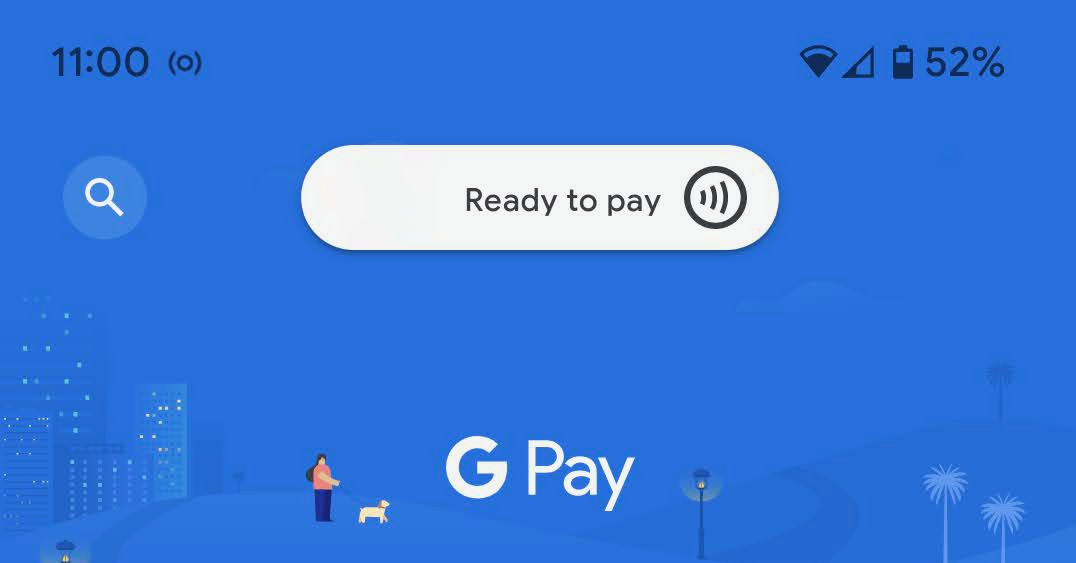
There are a variety of features you can access from the main G Pay screen. To begin with, four buttons let you make contactless payments, send or request funds, view offers from Google partners, or track your spending.

At the very top of the screen, tap the “Ready to pay” button or the “Pay contactless” button lower down to go to a page that allows you to transmit payment info to a reader. (Be aware that many Google Pay readers can accept the electronic payment without you having to actually go into the app.) This same page shows the credit cards and other financial sources you’ve registered with G Pay.

You can swipe across to add a new credit or debit card, or PayPal account, to G Pay. If you’ve already used a card or your PayPal account to pay for something on Google Play — an app, say, or a movie — then your other cards may be listed there already when you tap on “Add a payment method.” However, you will have to enable them in order to use them as sources for contactless payment.

The home screen of the Google Pay app.

The home screen of the Google Pay app.

You can add a new payment source on the Ready to pay screen.

You can add a new payment source on the Ready to pay screen.

At the bottom of the main screen, there are three icons: a label that shows you various sponsored deals, the main home screen icon, and a dollar sign that shows you “spending insights” — in other words, how much you’ve spent. You can also link your bank and other accounts here if you choose to.

Finally, if you swipe down on the home screen, you can find businesses that accept G Pay and a list of people to whom you’ve sent money or who you have requested money from.

If you want, you can also manage your account on the web by going to the Google Pay account page.

Where can I use Google Pay?

In the real world, you can use Google Pay just about anywhere you see a credit card terminal with the G Pay logo. From there, all you need to do is unlock your phone and move it up to the terminal’s contact point.

Is Google Pay secure?

According to Google, it protects your info by sharing a temporary, encrypted number (rather than your actual card number) with merchants. You can find more information about Google’s security and privacy controls here.

If you lose your phone, Google’s Find My Device can be accessed from any computer with your Google account. From there, you can lock, locate, or remotely wipe your phone and all of its contents.

You can monitor the security of your account by going into the settings of the Google Pay app. To do so, tap on your personal icon in the upper-right corner and select Settings > Privacy & security > Data & personalization. This is where you can determine whether Google can send your info to third parties, share info about your creditworthiness, or share info with other Google companies for marketing purposes.

The Privacy & security pane also lets you determine how you authorize purchases and whether you can see other info such as bills from Gmail within Google Pay.

Update March 11th, 2022, 1:10PM ET: This article was originally published on May 16th, 2018. It has been updated to allow for changes in Google Pay’s interface and features since that date.

Credit: Source link

Previous Post

10 Best Antivirus Programs of 2022 (AI Powered)

Next Post

Brazil Imposes Stricter FinTech Rules

New York Tech Editorial Team

New York Tech Editorial Team

New York Tech Media is a leading news publication that aims to provide the latest tech news, fintech, AI & robotics, cybersecurity, startups & leaders, venture capital, and much more!

Next Post
Brazil Imposes Stricter FinTech Rules

Brazil Imposes Stricter FinTech Rules

  • Trending
  • Comments
  • Latest
Meet the Top 10 K-Pop Artists Taking Over 2024

Meet the Top 10 K-Pop Artists Taking Over 2024

March 17, 2024
Panther for AWS allows security teams to monitor their AWS infrastructure in real-time

Many businesses lack a formal ransomware plan

March 29, 2022
Zach Mulcahey, 25 | Cover Story | Style Weekly

Zach Mulcahey, 25 | Cover Story | Style Weekly

March 29, 2022
How To Pitch The Investor: Ronen Menipaz, Founder of M51

How To Pitch The Investor: Ronen Menipaz, Founder of M51

March 29, 2022
10 Raunchy Movies on Netflix You Won’t Regret Watching

10 Raunchy Movies on Netflix You Won’t Regret Watching

May 20, 2024
Japanese Space Industry Startup “Synspective” Raises US $100 Million in Funding

Japanese Space Industry Startup “Synspective” Raises US $100 Million in Funding

March 29, 2022
Startups On Demand: renovai is the Netflix of Online Shopping

Startups On Demand: renovai is the Netflix of Online Shopping

2
Robot Company Offers $200K for Right to Use One Applicant’s Face and Voice ‘Forever’

Robot Company Offers $200K for Right to Use One Applicant’s Face and Voice ‘Forever’

1
Menashe Shani Accessibility High Tech on the low

Revolutionizing Accessibility: The Story of Purple Lens

1

Netgear announces a $1,500 Wi-Fi 6E mesh router

0
These apps let you customize Windows 11 to bring the taskbar back to life

These apps let you customize Windows 11 to bring the taskbar back to life

0
This bipedal robot uses propeller arms to slackline and skateboard

This bipedal robot uses propeller arms to slackline and skateboard

0
laptop on glass table

Automat-it Cuts Deployment Friction as Monce Scales AI Order Processing on AWS

April 13, 2026
Lee's Famous Recipe Chicken

Why Lee’s Famous Recipe Chicken Is Betting on Hi Auto to Quietly Rewire the Drive-Thru

April 9, 2026
computer generated image of letters

San Francisco Tribune Lists 11 HumanX Startups Moving AI Closer to the Operating Core

April 8, 2026
Impala CEO and Highrise AI CEO

The Industrialization of AI Infrastructure: What Impala and Highrise AI Reveal About the Next Scaling Frontier

April 7, 2026
Employee Time Tracking

What is an Employee Time Tracking Solution? A Definite Guide for 2026

March 31, 2026
Voltify founders

Voltify Raises $30 Million Seed Round as It Challenges $1 Trillion Rail Electrification Model

March 31, 2026

Recommended

laptop on glass table

Automat-it Cuts Deployment Friction as Monce Scales AI Order Processing on AWS

April 13, 2026
Lee's Famous Recipe Chicken

Why Lee’s Famous Recipe Chicken Is Betting on Hi Auto to Quietly Rewire the Drive-Thru

April 9, 2026
computer generated image of letters

San Francisco Tribune Lists 11 HumanX Startups Moving AI Closer to the Operating Core

April 8, 2026
Impala CEO and Highrise AI CEO

The Industrialization of AI Infrastructure: What Impala and Highrise AI Reveal About the Next Scaling Frontier

April 7, 2026

Categories

  • AI & Robotics
  • Benzinga
  • Cybersecurity
  • FinTech
  • New York Tech
  • News
  • Startups & Leaders
  • Venture Capital

Tags

AI AI QSRs Allseated Automat-it AWS B2B marketing Business CISO CISO Whisperer Collaborations Companies To Watch cryptocurrency Cybersecurity Entrepreneur Fetcherr Finance FINQ Fintech Funding Announcement hi-tech Hi Auto Impala Investing Investors investorsummit Israel israelitech Leaders LinkedIn Leaders Metaverse Mindset Minnesota omri hurwitz PointFive PR QSR Real Estate start- up startupnation Startups Startups On Demand Tech Tech leaders Unlimited Robotics VC
  • Contact Us
  • Privacy Policy
  • Terms and conditions

© 2024 All Rights Reserved - New York Tech Media

No Result
View All Result
  • News
  • FinTech
  • AI & Robotics
  • Cybersecurity
  • Startups & Leaders
  • Venture Capital

© 2024 All Rights Reserved - New York Tech Media