

New York Tech Media
  • News
  • FinTech
  • AI & Robotics
  • Cybersecurity
  • Startups & Leaders
  • Venture Capital
No Result
View All Result
  • News
  • FinTech
  • AI & Robotics
  • Cybersecurity
  • Startups & Leaders
  • Venture Capital
No Result
View All Result
New York Tech Media
No Result
View All Result
Home Startups & Leaders

Change how BitLocker unlocks OS Drive at Startup in Windows 11/10

New York Tech Editorial Team by New York Tech Editorial Team
April 16, 2022
in Startups & Leaders
0
Change how BitLocker unlocks OS Drive at Startup in Windows 11/10
Share on FacebookShare on Twitter

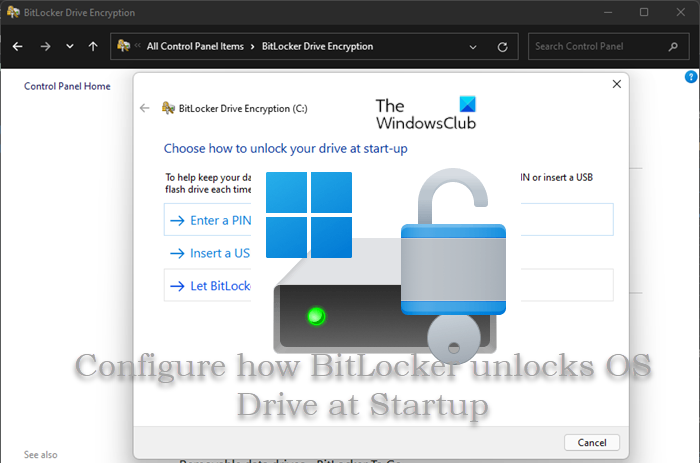
Windows users can enable or disable Enhanced PINs for BitLocker Startup, and can specify Minimum Length for BitLocker Startup PIN in Windows 11 or Windows 10. In this post, we will show you how you can choose or change how BitLocker unlocks OS C Drive at Startup with PIN, USB flash drive or TPM.

Change how BitLocker unlocks OS Drive at Startup in Windows 11/10

Choose how BitLocker unlocks Windows OS Drive at Startup

BitLocker Drive Encryption is a data protection feature that integrates with the operating system and addresses the threats of data theft or exposure from lost, stolen, or inappropriately decommissioned drives and computers. BitLocker will automatically unlock an OS drive encrypted by BitLocker with Trusted Platform Module (TPM) at startup by default in Windows 11/10, but you can also turn on BitLocker for Windows OS Drives without TPM.

BitLocker will lock the operating system drive and you’ll need a special BitLocker recovery key to unlock the drive if during startup a potential security risk is detected; for example, a change to the BIOS firmware. You can configure or change how BitLocker unlocks OS Drive at Startup in 3 ways, and we will discuss this method as follows:

Configure how BitLocker unlocks OS Drive at Startup with PIN

Configure how BitLocker unlocks OS Drive at Startup with PIN

To configure or change how BitLocker unlocks OS Drive at Startup with PIN in Windows 11/10, do the following:

  • Press Windows key + R to invoke the Run dialog.
  • In the Run dialog box, type control and hit Enter to open Control Panel.
  • From the top right corner of the window, set the View by option to Large icons or Small icons.
  • Click on BitLocker Drive Encryption.
  • Next, click Change how drive is unlocked at startup for the OS drive (if you have multiple system drive setup) you want to configure.
  • At the next window, click on Enter a PIN (recommended).
  • Now, enter a PIN with the specified requirement and Re-enter PIN.
  • Click on Set PIN.
  • Close the Control Panel.

Change how BitLocker unlocks OS Drive at Startup with TPM

Configure how BitLocker unlocks OS Drive at Startup with TPM

To configure or change how BitLocker unlocks OS Drive at Startup with TPM in Windows 11/10, do the following:

  • Open Control Panel.
  • Click on BitLocker Drive Encryption.
  • Click Change how drive is unlocked at startup for the OS drive (if you have multiple system drive setup) you want to configure.
  • At the next window, click on Let BitLocker automatically unlock my drive.
  • Click on Finish.
  • Close the Control Panel.

Configure how BitLocker unlocks OS Drive at Startup with USB flash drive

Configure how BitLocker unlocks OS Drive at Startup with USB flash drive

To configure or change how BitLocker unlocks OS Drive at Startup with USB flash drive in Windows 11/10, do the following:

  • Plug in a USB flash drive on your system.
  • Open Control Panel.
  • Click on BitLocker Drive Encryption.
  • Click Change how drive is unlocked at startup for the OS drive (if you have multiple system drive setup) you want to configure.
  • At the next window, click on Insert a USB flash drive.
  • Select the USB flash drive, and click on Save.

The flash drive will not be formatted, so you will not lose anything currently on the USB. The BitLocker startup key for the OS drive will be saved to the USB so it can be used to unlock the OS drive at startup.

That’s it on how configure or change how BitLocker unlocks OS Drive at Startup in Windows 11/10!

How do I make BitLocker automatically unlock my drive?

You just click Turn on/off auto-unlock respectively. Auto Unlock also works on removable data drives. You can choose to enable Auto Unlock when setting up BitLocker drive encryption on a data volume by checking Automatically unlock this drive on this computer in the BitLocker configuration wizard.

How do I set BitLocker to start automatically when I boot?

To set BitLocker to start automatically when you boot your Windows 11/10 device, do the following:

  • Open Group Policy Editor.
  • Navigate to Computer Configuration > Administrative Templates > Windows Components > BitLocker Drive Encryption > Operating System Drives.
  • At the location, at the right pane, double-click the Require Additional Authentication at Startup option.
  • Set the radio button to Enabled at the top of the policy properties window.

Can BitLocker be enabled automatically?

BitLocker automatic device encryption is enabled only after users sign in with a Microsoft Account or an Azure Active Directory account. BitLocker automatic device encryption is not enabled with local accounts, in which case BitLocker can be manually enabled using the BitLocker Control Panel.

What is BitLocker pre-boot authentication?

Pre-boot authentication with BitLocker is a policy setting that requires the use of either user input, such as a PIN, a startup key, or both to authenticate prior to making the contents of the system drive accessible. BitLocker recovery mode can be triggered by a number of situations including, a malicious attempt by a person or software to change the startup environment – Rootkits are one example, another is moving the BitLocker-protected drive into a new computer.
Credit: Source link


Previous Post

You might see an ad after you finish today’s Wordle

Next Post

Chinese astronauts return to Earth after spending six months in space

New York Tech Editorial Team

New York Tech Editorial Team

New York Tech Media is a leading news publication that aims to provide the latest tech news, fintech, AI & robotics, cybersecurity, startups & leaders, venture capital, and much more!

Next Post
Chinese astronauts return to Earth after spending six months in space

Chinese astronauts return to Earth after spending six months in space

  • Trending
  • Comments
  • Latest
Meet the Top 10 K-Pop Artists Taking Over 2024

Meet the Top 10 K-Pop Artists Taking Over 2024

March 17, 2024
Panther for AWS allows security teams to monitor their AWS infrastructure in real-time

Many businesses lack a formal ransomware plan

March 29, 2022
Zach Mulcahey, 25 | Cover Story | Style Weekly

Zach Mulcahey, 25 | Cover Story | Style Weekly

March 29, 2022
How To Pitch The Investor: Ronen Menipaz, Founder of M51

How To Pitch The Investor: Ronen Menipaz, Founder of M51

March 29, 2022
10 Raunchy Movies on Netflix You Won’t Regret Watching

10 Raunchy Movies on Netflix You Won’t Regret Watching

May 20, 2024
Japanese Space Industry Startup “Synspective” Raises US $100 Million in Funding

Japanese Space Industry Startup “Synspective” Raises US $100 Million in Funding

March 29, 2022
Startups On Demand: renovai is the Netflix of Online Shopping

Startups On Demand: renovai is the Netflix of Online Shopping

2
Robot Company Offers $200K for Right to Use One Applicant’s Face and Voice ‘Forever’

Robot Company Offers $200K for Right to Use One Applicant’s Face and Voice ‘Forever’

1
Menashe Shani Accessibility High Tech on the low

Revolutionizing Accessibility: The Story of Purple Lens

1

Netgear announces a $1,500 Wi-Fi 6E mesh router

0
These apps let you customize Windows 11 to bring the taskbar back to life

These apps let you customize Windows 11 to bring the taskbar back to life

0
This bipedal robot uses propeller arms to slackline and skateboard

This bipedal robot uses propeller arms to slackline and skateboard

0
laptop on glass table

Automat-it Cuts Deployment Friction as Monce Scales AI Order Processing on AWS

April 13, 2026
Lee's Famous Recipe Chicken

Why Lee’s Famous Recipe Chicken Is Betting on Hi Auto to Quietly Rewire the Drive-Thru

April 9, 2026
computer generated image of letters

San Francisco Tribune Lists 11 HumanX Startups Moving AI Closer to the Operating Core

April 8, 2026
Impala CEO and Highrise AI CEO

The Industrialization of AI Infrastructure: What Impala and Highrise AI Reveal About the Next Scaling Frontier

April 7, 2026
Employee Time Tracking

What is an Employee Time Tracking Solution? A Definite Guide for 2026

March 31, 2026
Voltify founders

Voltify Raises $30 Million Seed Round as It Challenges $1 Trillion Rail Electrification Model

March 31, 2026

Recommended

laptop on glass table

Automat-it Cuts Deployment Friction as Monce Scales AI Order Processing on AWS

April 13, 2026
Lee's Famous Recipe Chicken

Why Lee’s Famous Recipe Chicken Is Betting on Hi Auto to Quietly Rewire the Drive-Thru

April 9, 2026
computer generated image of letters

San Francisco Tribune Lists 11 HumanX Startups Moving AI Closer to the Operating Core

April 8, 2026
Impala CEO and Highrise AI CEO

The Industrialization of AI Infrastructure: What Impala and Highrise AI Reveal About the Next Scaling Frontier

April 7, 2026

Categories

  • AI & Robotics
  • Benzinga
  • Cybersecurity
  • FinTech
  • New York Tech
  • News
  • Startups & Leaders
  • Venture Capital

Tags

AI AI QSRs Allseated Automat-it AWS B2B marketing Business CISO CISO Whisperer Collaborations Companies To Watch cryptocurrency Cybersecurity Entrepreneur Fetcherr Finance FINQ Fintech Funding Announcement hi-tech Hi Auto Impala Investing Investors investorsummit Israel israelitech Leaders LinkedIn Leaders Metaverse Mindset Minnesota omri hurwitz PointFive PR QSR Real Estate start- up startupnation Startups Startups On Demand Tech Tech leaders Unlimited Robotics VC
  • Contact Us
  • Privacy Policy
  • Terms and conditions

© 2024 All Rights Reserved - New York Tech Media

No Result
View All Result
  • News
  • FinTech
  • AI & Robotics
  • Cybersecurity
  • Startups & Leaders
  • Venture Capital

© 2024 All Rights Reserved - New York Tech Media