

New York Tech Media
  • News
  • FinTech
  • AI & Robotics
  • Cybersecurity
  • Startups & Leaders
  • Venture Capital
No Result
View All Result
  • News
  • FinTech
  • AI & Robotics
  • Cybersecurity
  • Startups & Leaders
  • Venture Capital
No Result
View All Result
New York Tech Media
No Result
View All Result
Home Startups & Leaders

Top 4 Ways to Run Apps at Startup on Windows 11

New York Tech Editorial Team by New York Tech Editorial Team
March 5, 2022
in Startups & Leaders
0
Top 4 Ways to Run Apps at Startup on Windows 11
Share on FacebookShare on Twitter

Do you tend to open the same set of apps every day after booting your PC? If yes, then you’d be happy to know that Windows 11 offers more than one way through which you can automate that task. Be it a browser, a program, or software, you can use the methods in this guide to configure them to run at startup.
By default, Windows already runs a few essential apps and services every time your PC starts, but you can always add more apps to that list. In this post, we’ll talk you through a few different ways you can run apps at startup on Windows 11. So, without further ado, let’s check them out.

1. Modify In-App Settings

Probably the simplest way to run an app at startup is by tweaking its in-app settings. Several apps like Spotify, Telegram, Microsoft Teams, and such carry in-app settings that you can configure to launch them at startup.

If your favorite app doesn’t carry such a setting, you can always use the methods below to run them at startup.

2. Use Settings App

Another way to enable an app to run at startup is via the Settings app on Windows 11. This method can be useful if you want to change startup behavior for multiple apps at once. Here’s how to do it.

Step 1: Open the Start menu and click on the gear icon to open Settings. Alternatively, you can use the Windows key + I shortcut to quickly launch the Settings app.

Step 2: Use the left pane to navigate to the Apps tab and click on Startup.

Step 3: Turn on the switch next to an app to configure it to run at startup.

Make sure not to run too many apps at startup as this could lead to issues like slower boot times or faster battery drain on Windows 11.

To get a good sense of how a Startup app will impact Windows 11, try sorting the apps based on their Startup Impacts. Consider avoiding apps with higher impact for an optimal experience.

3. Use Startup Folder

The Startup folder is a utility that comes with most versions of Windows. You can use it to launch programs, run scripts, and more. Here’s how.

Step 1: Press Windows key + R to launch the Run dialog box. In the Open field, type shell:startup and press Enter.

Step 2: Click on the New menu in the top left corner and select Shortcut from the list.

Step 3: Use the Browse button to locate and select the executable file of a program you wish to launch. Then hit Next.

Step 4: Write a suitable name for the shortcut and click on Finish.

Alternatively, you can also drag and drop the app shortcut in the Startup folder.

4. Use Task Scheduler

Task Scheduler is arguably the most underappreciated utility on Windows. Whether you want to empty the recycle bin on a regular basis, shut down your PC on schedule, or launch a program at startup, Task Scheduler can help automate almost any task on your computer.

Here’s how to use Task Scheduler on Windows 11 to run apps at startup.

Step 1: Open the Start menu, type in task scheduler in the search box, and select the first result that appears.

Step 2: Right-click on the Task Scheduler Library folder on your left and select the New Folder option. Give a suitable name to that folder, such as ‘Startup Apps.’
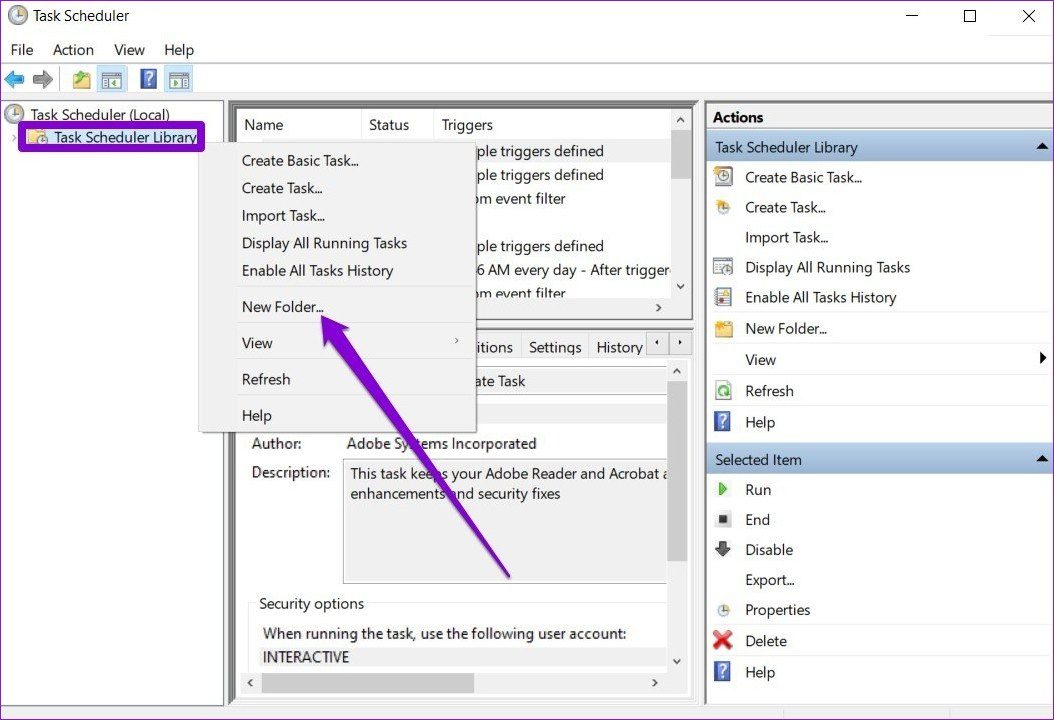
Step 3: Select the newly created folder and open the Actions menu at the top to select ‘Create Basic Task.’

Step 4: Enter a name and a short description of the task. Then hit Next.

Step 5: You’ll be asked to set a trigger for the task. As we want the apps to run at startup, select When the computer starts and click Next.

Step 6: In the Action tab, select the Start a program option and hit Next.

Step 7: Use the Browse button under Program/script to select the executable file of a program you wish to launch. Then click on Next.

Step 8: Finally, review the task details before hitting Finish.

That’s it. Windows will launch the app every time your PC starts. You can repeat the same steps above to create more tasks and launch other apps at startup.

Automate Windows

Enabling apps to run at startup can help you get to work straight away. While this may not sound like much, this can relieve you from the mundane task of opening the same apps every day. So, which of the above methods did you like the most? Share your thoughts in the comments below.


Credit: Source link

Previous Post

Vampire Survivors: the definitive made-up Italian-American backstory

Next Post

The Impact of Automation on the Job Market

New York Tech Editorial Team

New York Tech Editorial Team

New York Tech Media is a leading news publication that aims to provide the latest tech news, fintech, AI & robotics, cybersecurity, startups & leaders, venture capital, and much more!

Next Post
The Impact of Automation on the Job Market

The Impact of Automation on the Job Market

  • Trending
  • Comments
  • Latest
Meet the Top 10 K-Pop Artists Taking Over 2024

Meet the Top 10 K-Pop Artists Taking Over 2024

March 17, 2024
10 Raunchy Movies on Netflix You Won’t Regret Watching

10 Raunchy Movies on Netflix You Won’t Regret Watching

May 20, 2024
Panther for AWS allows security teams to monitor their AWS infrastructure in real-time

Many businesses lack a formal ransomware plan

March 29, 2022
Zach Mulcahey, 25 | Cover Story | Style Weekly

Zach Mulcahey, 25 | Cover Story | Style Weekly

March 29, 2022
How To Pitch The Investor: Ronen Menipaz, Founder of M51

How To Pitch The Investor: Ronen Menipaz, Founder of M51

March 29, 2022
Clubhouse will soon let you pin links to the top of rooms

Clubhouse will soon let you pin links to the top of rooms

October 23, 2021
Startups On Demand: renovai is the Netflix of Online Shopping

Startups On Demand: renovai is the Netflix of Online Shopping

2
Robot Company Offers $200K for Right to Use One Applicant’s Face and Voice ‘Forever’

Robot Company Offers $200K for Right to Use One Applicant’s Face and Voice ‘Forever’

1
Menashe Shani Accessibility High Tech on the low

Revolutionizing Accessibility: The Story of Purple Lens

1

Netgear announces a $1,500 Wi-Fi 6E mesh router

0
These apps let you customize Windows 11 to bring the taskbar back to life

These apps let you customize Windows 11 to bring the taskbar back to life

0
This bipedal robot uses propeller arms to slackline and skateboard

This bipedal robot uses propeller arms to slackline and skateboard

0
Ask Perion

Perion Launches Ask Perion to Bring AI-Powered Self-Service to Omnichannel Advertising

June 18, 2026
AI generated image courtesy of Famous Labs

Famous.ai and the Small Business Owner Who No Longer Needs Silicon Valley

June 17, 2026
Checkout customer service

Perion Selected by Best Buy Canada to Power Programmatic Retail DOOH Media Network

June 17, 2026
three men posing outdoors

An AI Company on a Tiny Island Just Beat the Biggest Names on Wall Street. Here’s the Part That Should Surprise You.

June 2, 2026
man in a blue coat wearing glasses

Why Human Skills Matter More Than Ever in the AI Era

May 27, 2026
essential travel gadgets

May 24, 2026

Recommended

Ask Perion

Perion Launches Ask Perion to Bring AI-Powered Self-Service to Omnichannel Advertising

June 18, 2026
AI generated image courtesy of Famous Labs

Famous.ai and the Small Business Owner Who No Longer Needs Silicon Valley

June 17, 2026
Checkout customer service

Perion Selected by Best Buy Canada to Power Programmatic Retail DOOH Media Network

June 17, 2026
three men posing outdoors

An AI Company on a Tiny Island Just Beat the Biggest Names on Wall Street. Here’s the Part That Should Surprise You.

June 2, 2026

Categories

  • AI & Robotics
  • Benzinga
  • Cybersecurity
  • FinTech
  • New York Tech
  • News
  • Startups & Leaders
  • Venture Capital

Tags

AI AI QSRs Allseated Automat-it AWS B2B marketing Business CISO CISO Whisperer Collaborations Companies To Watch cryptocurrency Cybersecurity Entrepreneur Fetcherr Finance FINQ Fintech Funding Announcement hi-tech Hi Auto Impala Investing Investors investorsummit israelitech Leaders LinkedIn Leaders Metaverse Mindset Minnesota omri hurwitz Perion PointFive PR QSR Real Estate start- up startupnation Startups Startups On Demand Tech Tech leaders Unlimited Robotics VC
  • Contact Us
  • Privacy Policy
  • Terms and conditions

© 2024 All Rights Reserved - New York Tech Media

No Result
View All Result
  • News
  • FinTech
  • AI & Robotics
  • Cybersecurity
  • Startups & Leaders
  • Venture Capital

© 2024 All Rights Reserved - New York Tech Media